This is found under Flexmls IDX > Settings > Behavior 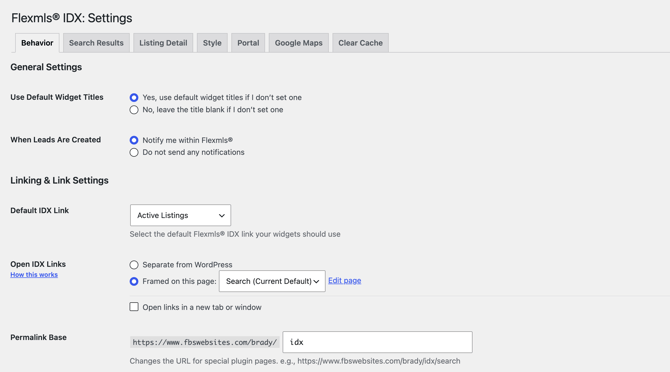
General Settings
Use Default Widget Titles - Controls whether IDX widgets show a built-in default title when you leave the title blank. Choose Yes to use the default title, or No to leave the widget title empty.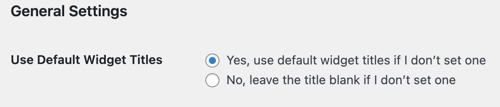
When Leads Are Created - Choose whether new leads from contact forms are sent as notifications inside Flexmls, or whether no notifications are sent.
Linking & Link Settings
Default IDX Link - Sets the Flexmls IDX link widgets use by default when no link is specified. This link also appears on framed IDX pages when no specific link is passed.
Open IDX Links - Controls how IDX links open on your site. Separate from WordPress sends visitors to standalone plugin URLs; Framed on this page embeds IDX content in a WordPress page that includes the [idx_frame] shortcode.
Permalink Base – This will change the directory name for the search result pages. Check out our SEO Tips page on how to best use the plugin on this topic.
Labels - Customize how property types names are displayed on your site.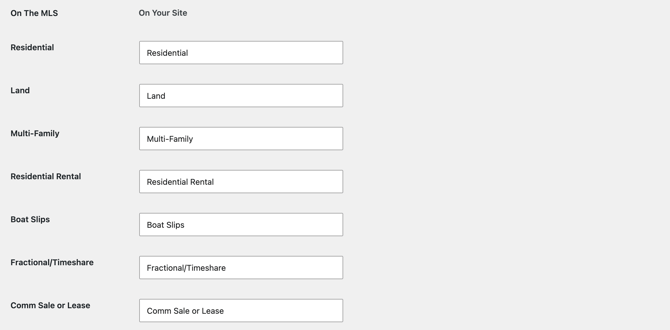
Select2 Scripts - By default, Flexmls plugin loads Select2 scripts. If there are conflicts with other plugins or themes, turn off loading it.
Chartkick Scripts - Using Version 2 of the market stats widget, Flexmls plugin loads Chartkick JS scripts. If there are conflicts with other plugins or themes, turn off loading it.
If you’re using a SEO plugin, you may need to disable Permalink Cleaning for this feature to work.
Search Results Settings

Listing Summary/Search Result pages blank? - Turns on a compatibility mode for blank Listing Summary or Search Results pages caused by theme or plugin conflicts. Leave this off unless you are troubleshooting blank output.
Sold & Pending Listings Search - If your MLS allows the display of sold listings in IDX you’ll have this option. By selecting the “Yes, allow visitors to search for sold listings” option it will allow you to apply the status field to the IDX Search widget so users can select active or sold as their search criteria.
Search Results Page (Version 2 Template Only)
Listing thumbnail loading (Version 2 only) - Uses the browser’s native lazy loading for listing photos on search results pages. Turn this off if another lazy-load plugin or your theme causes thumbnails to load incorrectly.
Display Open House Date/Time (Version 2 only) - Shows the next upcoming open house date and start time on Version 2 listing summary and search results cards when available.
Listing Detail Settings

Listing not available page – When a listing goes off the market (or the status changes to one that is not allowed in IDX), if a user has bookmarked the page, you can either display the message “This listing is no longer available” (default) or select a custom page on your site to display. We do suggest creating a page dedicated to handling this situation. In that page you should include some widgets that show other listings available in your market.
Expand all listing detail page sections by default - Sets whether extra listing detail sections start expanded or collapsed. Core sections such as address, location, and property features always remain expanded.
Show “More Information” section on listing detail pages - Turns the expandable More Information section on or off for Version 2 listing detail pages.
Contact on sold & closed listings - Shows or hides contact, schedule showing, and similar lead buttons on sold and closed listing detail pages.
Version 2 Listing Detail Photo Action - Controls what happens when a visitor clicks a photo on a Version 2 listing detail page. Choose whether photos open in a modal or stay on the page without a modal.
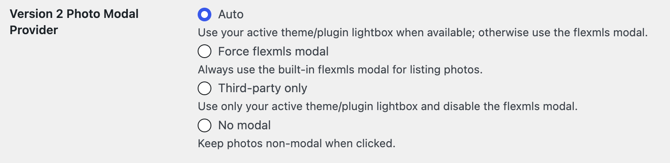
Version 2 Photo Modal Provider - Applies when photos open in a modal. Choose Auto to prefer your theme/plugin lightbox when available, Force flexmls modal, Third-party only, or No modal.